Linux is not one program, it is many: each group builds its own, and each build is called a distribution. There are hundreds. I use three of them, and those come first, with the machine each one runs on. After that, the ten most recommended in the world.
And the distribution is only half of it: on top goes the desktop, which is everything you see and can be changed without changing distribution. If what you are switching on is the machine in the closet, that is another story and it is at the end.
What is actually installed in this house
The three I use
With the machine each one runs on and its parts. If you are only going to read one part of this page, make it this one: the rest are the most recommended in the world, which is worth knowing, but these are the ones somebody switched on today.
You are coming from Windows and you need it to LOOK like Windows
Zorin OS
7 most looked at
The one that dresses up as what you were already using.
I use this one · At the office
Ready out of the box—nothing is missing, and it brings extra: codecs, an office suite and a layer for opening Windows programs.
Wants4 GB of RAM. The Lite edition goes below that.
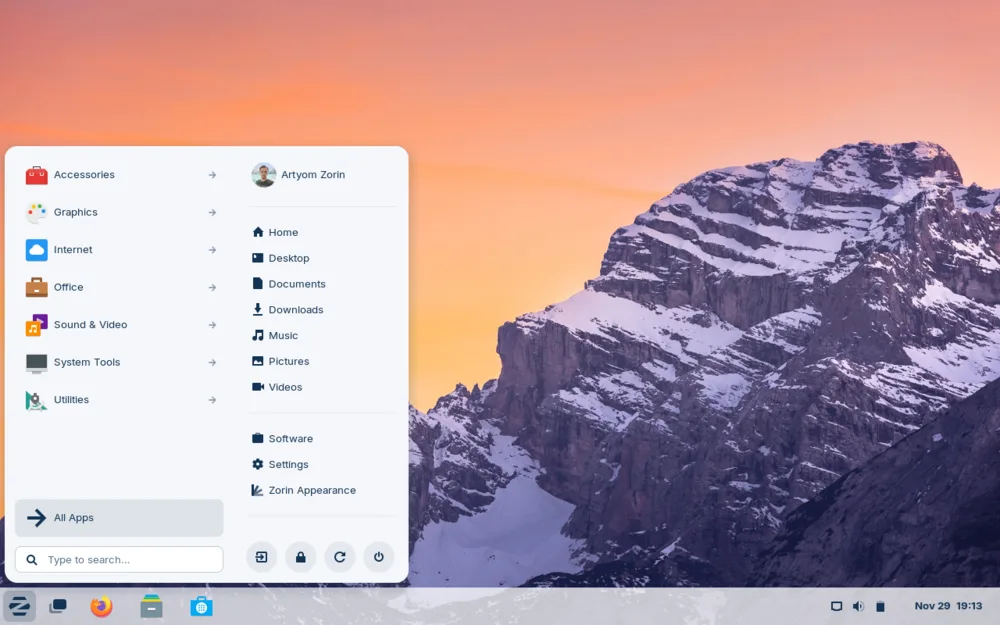
+Who it is not for, how it looks, and how long it lastsThis is Zorin OS 17. Photo by Artyom Zorin, licence GPL ↗
It ships with layouts that imitate the desktop you left behind, for the while when your eyes still look for it. And it is the one that best solves the problem of the Windows programs you cannot let go of. There is a Lite edition with Xfce for older machines.
Who it is not for
You want recent software. Like Mint, it runs on Ubuntu 24.04 and puts nothing-moves ahead of everything-current.
You want the newest Arch without spending the afternoon assembling it
CachyOS
1 most looked at
Arch, but already built and tuned.
I use this one · At home, with Hyprland and HyDE on topAMD Ryzen 5 5600X · 16 GB of RAM · NVIDIA GeForce RTX 4060 Ti · 238 GB solid-state drive
Ready out of the box—nothing is missing: it ships codecs and the NVIDIA driver out of the box, a graphical installer, and the desktop is chosen right there.
Wants8 GB of RAM. With a recent graphics card it gets everything out of what it ships.
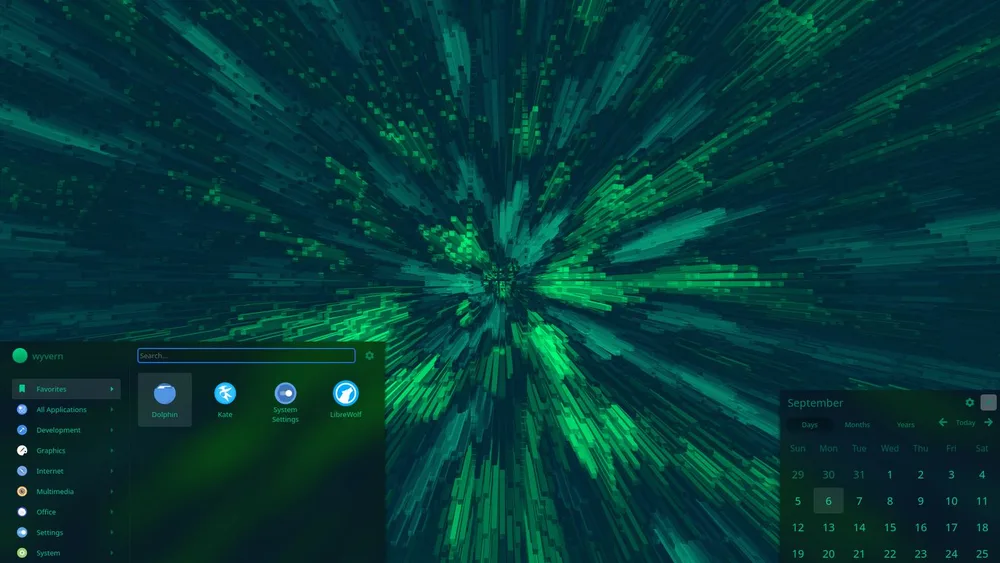
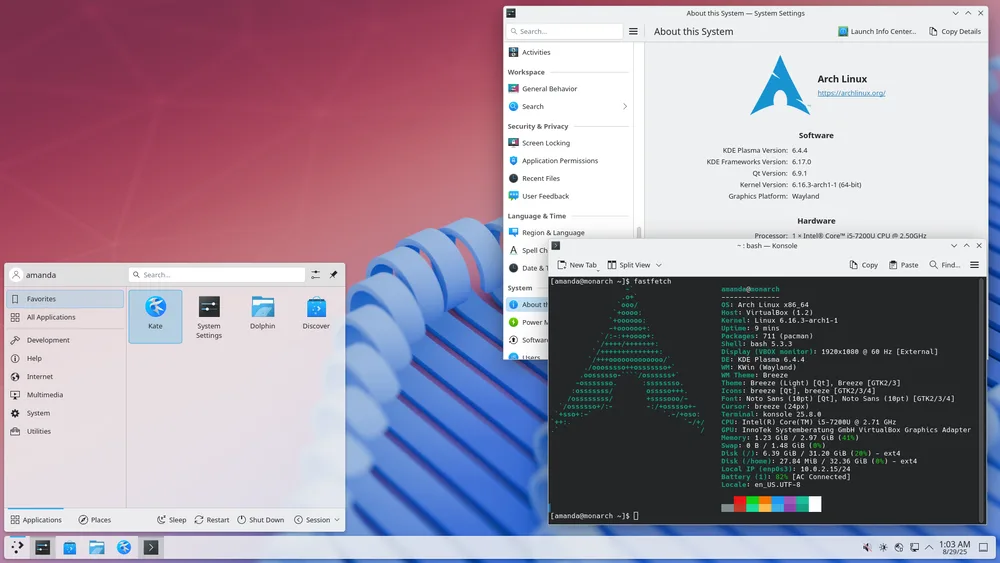
+Who it is not for, how it looks, and how long it lastsThis is CachyOS con KDE Plasma. Photo by ptr1337, licence GPL ↗
It is Arch with its own kernel and its packages compiled for modern processors, and its installer lets you pick a desktop on the fly: since its June 2026 image, even a Hyprland setup already put together. And it is the one most people are looking at: first on DistroWatch for over a year.
Who it is not for
You want a computer that does not change. Underneath it is still Arch: it updates continuously, and every so often an update asks you to step in. If the machine is the one that feeds you and you cannot afford a strange morning, get one that stays put.
What is different when installing it
Its installer asks which desktop you want, and that is THE screen that decides how your computer is going to look. You can change it later, but not with one click.
Desktop
Whichever you pick while installing: KDE, GNOME, Hyprland and several more.
How long it lasts
No releases: it updates forever, with a new image every month.
Current version
Imagen mensual · sin números de versión
Warning
Its packages are compiled for modern processors. On a machine more than ten years old it may not be the smartest choice, and there the speed gain it is famous for does not show up.
You want a spectacular desktop and you do not want to build it
Omarchy
Arch, but already built and already good-looking.
I use this one · On my laptopThinkPad X1 Carbon Gen 9 · Intel Core i7-1185G7 · 16 GB of RAM · integrated graphics
Ready out of the box—nothing is missing: it is Arch, but it arrives with the desktop built and decorated, which is exactly why it exists.
Wants8 GB of RAM and putting up with a few days of new shortcuts.
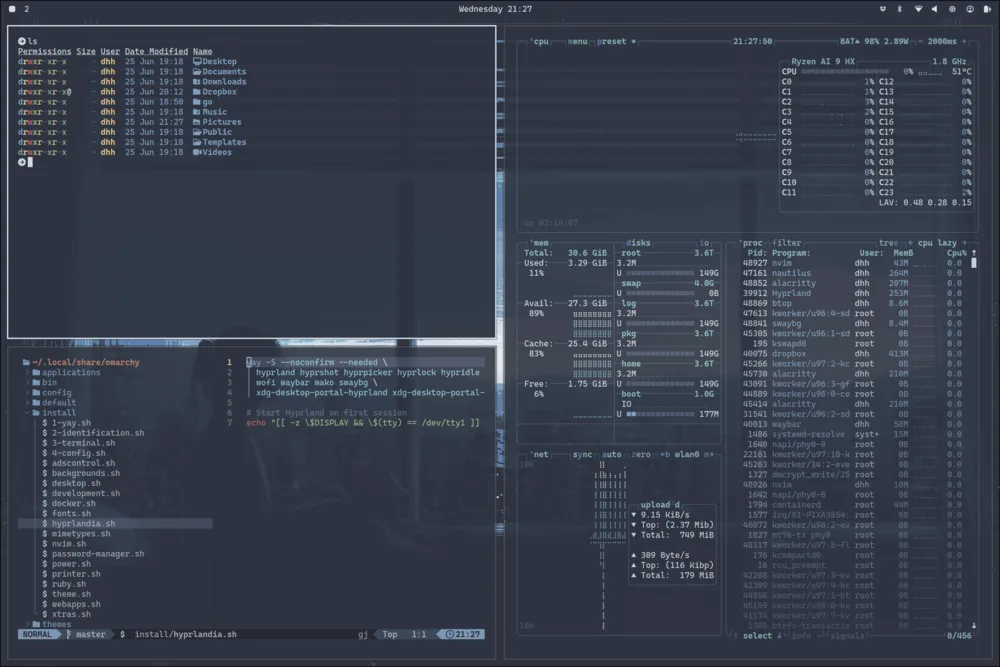
+Who it is not for, how it looks, and how long it lastsThis is Omarchy with the Nord theme. Photo by David Heinemeier Hansson, licence GPL ↗
It is Arch: everything you just read above still applies here, from the package manager to the ArchWiki. The difference is on top. Instead of a black screen you have to fill, it boots into a finished desktop — Hyprland, tiling: windows arrange themselves and almost everything is done from the keyboard — with its shortcuts, its themes and its programs already in place. It is built by the Basecamp team. Counted on the laptop above: 22 themes installed, swapped whole with one command, and 422 of its own commands hanging off a single word, omarchy, for what on other desktops takes twenty separate programs: audio, bluetooth, brightness, screenshots, battery, themes, fonts.
Who it is not for
You want to pick every piece yourself. Omarchy already decided for you on purpose, and that is precisely its appeal: if you are going to fight its decisions, install plain Arch and build your own. And if you have never used a tiling desktop, the first few days feel backwards. If what you want is a menu at the bottom left, this is not it, and that is fine: Mint.
What is different when installing it
It ships its own image and wants the disk to itself. If you plan to share the machine with Windows, plan it beforehand: of the twelve, this is the least comfortable for that.
Desktop
Hyprland
How long it lasts
No releases to wait for: it updates forever, like Arch.
Current version
4.0 «Quattro» · 14 de agosto de 2026
Warning
Two things before you install it. One: it inherits the good and the awkward of Arch, so it updates continuously and every so often an update asks you to step in; and it carries its own repository alongside the official ones, deserving the same care you give the AUR. And two, the one that can genuinely ruin your afternoon: if your card is an NVIDIA GeForce GTX 900 or GTX 10, its installer may still give you the new driver, which no longer supports them, and boot to a black screen. There are open reports about this. Those cards need the old branch, 580, and today you have to tell it so by hand.
And the rest, in case you do not take my word for it
The ten most recommended
Each one carries a label saying what is missing when the install finishes. “Ready out of the box” means you install it, reboot and it is working, and that is not an opinion: it is measured against the four things that genuinely are missing on first boot — video and music codecs, the NVIDIA driver, a software shop with an install button, and a desktop already built. Of the ten here, seven boot with all four in place: install, reboot, and you are working. The others say on their own line what they are missing. And the position — “2nd most looked at” — is DistroWatch's, over the last six months, read on 26 August 2026: it measures hits on a page, one per IP per day, not installations. It is the only public count there is, and the site itself warns that it equals neither usage nor quality.
You are coming from Windows and you do not want to learn anything new
Linux Mint
2 most looked at
The one that asks you the fewest questions.
Ready out of the box—nothing is missing: the codecs are a checkbox in the installer itself and the rest already comes set up.
Wants4 GB of RAM and a solid-state drive. With 8 GB it has room to spare.
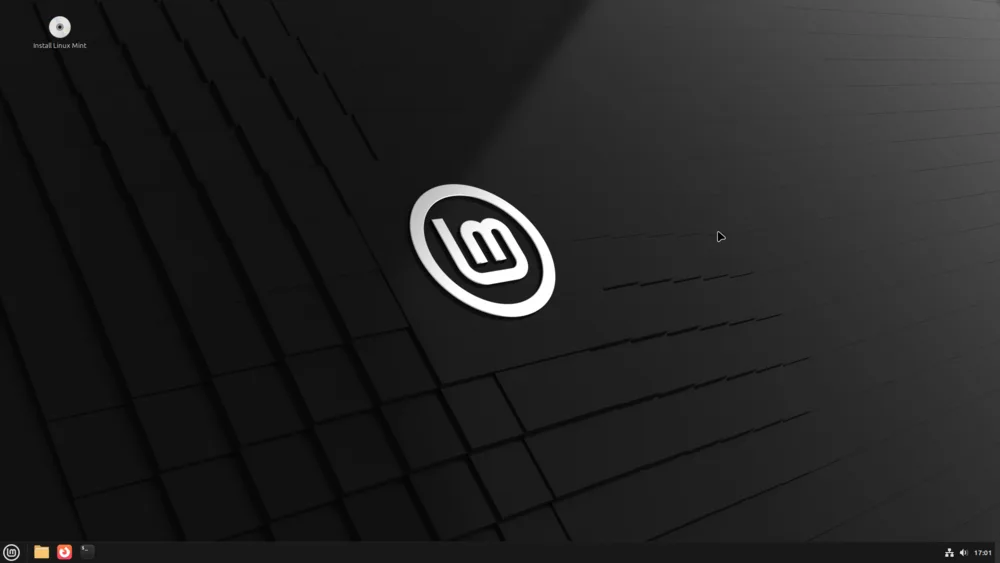
+Who it is not for, how it looks, and how long it lastsThis is Linux Mint 22.1. Photo by Clement Lefebvre and the Linux Mint developers, licence GPL ↗
The menu is at the bottom left, the file browser looks like the one you know, and the software manager is a shop with an install button. If you have never used Linux and you have to choose today, start here.
Who it is not for
Your machine is from this year. Mint 22.3 is built on Ubuntu 24.04 — a 2024 base — and with brand-new hardware that shows up in what it fails to recognise. For a new computer, Fedora.
Desktop
Cinnamon
How long it lasts
Supported until 2029. Mint 23 is planned for late 2026.
You want the first Google result to actually apply to you
Ubuntu LTS
8 most looked at
The one every tutorial on the internet assumes you are running.
Ready out of the box—nothing is missing: codecs and proprietary drivers are a checkbox you tick while installing.
Wants6 GB of RAM is the official minimum as of 26.04 — Canonical raised it from 4, which it had not touched since 2018 — but 8 is comfortable. And it is not a wall: it installs with less, just slowly. GNOME is heavier than Cinnamon.
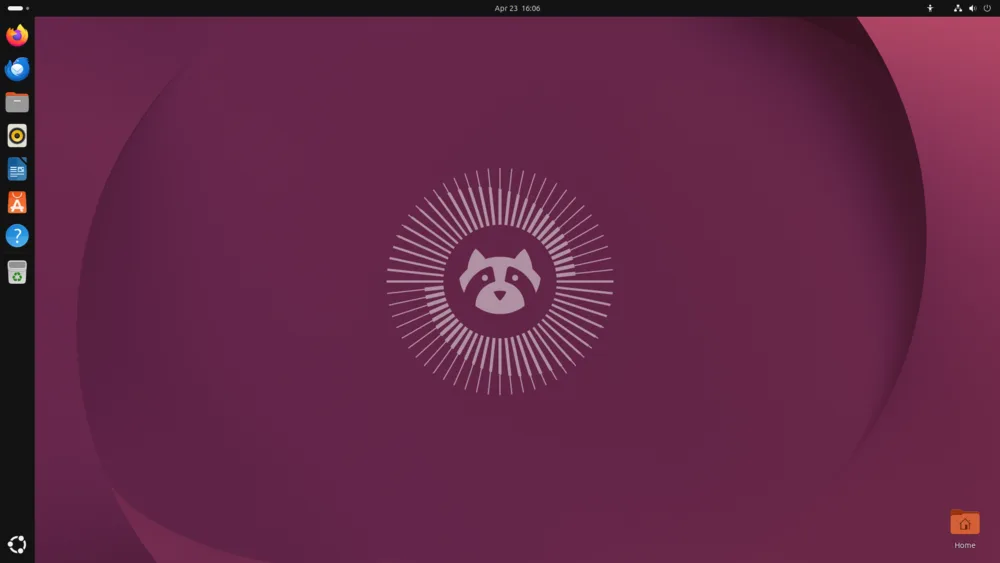
+Who it is not for, how it looks, and how long it lastsThis is Ubuntu 26.04 LTS. Photo by Canonical Ltd., licence GPL ↗
It is also the only one manufacturers certify: when Dell or Lenovo say “this laptop supports Linux”, they mean Ubuntu. If you are buying new hardware and want someone to complain to, this is it. 26.04 ships kernel 7.0 and is supported until 2031.
Who it is not for
It bothers you that the software shop pushes its own format (snap) even when the normal version exists. It is a Canonical decision that gets in a lot of people's way, and it is fair enough if it gets in yours.
Desktop
GNOME 50
How long it lasts
Five years per LTS release, until 2031.
Current version
26.04 LTS «Resolute Raccoon» · abril de 2026
Warning
If you are already on 24.04: the direct path from one LTS to the next opens with version 26.04.1, and that one ships on 27 August 2026. Before that date there was no clean way across and staying put was correct; from then on, the jump is offered to you. And there is no rush either way — 24.04 is supported until 2029.
Your machine is from this year and the others do not recognise it
Fedora
6 most looked at
The one that already ships what the rest will ship next year.
An afternoon short—it is missing the codecs and the NVIDIA driver, and that is policy: you add them from a third-party repository, RPM Fusion. It is the first thing everybody does when the install finishes, and it takes ten minutes.
Wants8 GB of RAM.
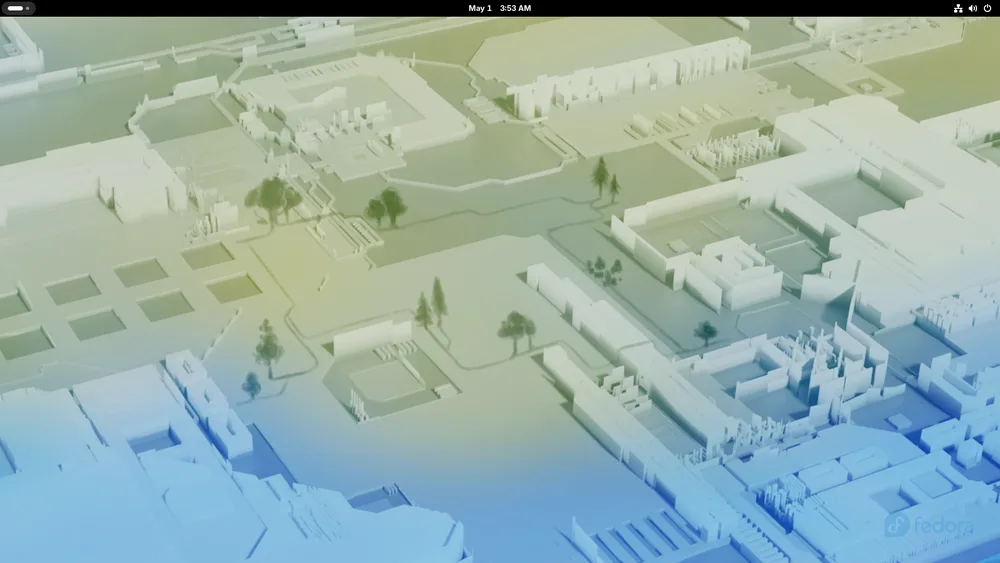
+Who it is not for, how it looks, and how long it lastsThis is Fedora 44 Workstation. Photo by The Fedora Project, licence GPL ↗
It runs ahead on kernel and desktop, so new hardware works on it sooner. It is also the cleanest of the big ones: what it installs is what the upstream project released, with no middleman layers.
Who it is not for
You want to install it and never think about it again: Fedora asks you to move up a version every thirteen months or fall out of support. It is a small commitment, but a real one.
What is different when installing it
When it finishes, the first thing to do is add the RPM Fusion repository: that is what brings the codecs and the NVIDIA driver, and without it half your videos will not play.
Desktop
GNOME 50 (and official spins with KDE, Xfce and more)
How long it lasts
Thirteen months per release. It upgrades without reinstalling.
Current version
44 · abril de 2026
Warning
Fedora 44 dropped the FUSE 2 libraries. If you depend on older AppImages, stop assuming they will open.
You have an NVIDIA card and you do not want to fight with it
Pop!_OS
4 most looked at
NVIDIA without the fight.
Ready out of the box—nothing is missing if you download the image with the NVIDIA driver inside, which is the reason to choose it in the first place.
Wants8 GB of RAM, and the NVIDIA card that justifies choosing it.
+Who it is not for, how it looks, and how long it lastsThis is Pop!_OS 24.04 LTS con COSMIC. Photo by System76, licence GPLv3 ↗
Your machine has an NVIDIA card and you want nothing to do with drivers: Pop!_OS offers an install image with the driver already inside. It is made by System76, who sell computers with Linux on them, so hardware matters to them out of self-interest. And COSMIC, their desktop written from scratch, is out of testing: 1.0 has been stable since late 2025.
Who it is not for
You want a desktop with twenty years of extensions and themes made by other people. COSMIC reached 1.0 in December 2025, so the ecosystem around it is still small.
Desktop
COSMIC
How long it lasts
Follows the Ubuntu LTS calendar; COSMIC updates separately.
Current version
24.04 LTS con COSMIC 1.0 · desde diciembre de 2025
You are going to play games and you do not want to touch anything
Bazzite
10 most looked at
The one that no longer asks you to configure anything to play.
Ready out of the box—nothing is missing, and on top of that it updates itself and can undo the update if something breaks.
Wants16 GB of RAM and whatever graphics card you plan to use.
+Who it is not for, how it looks, and how long it lastsThis is Bazzite 42 con GNOME. Photo by The Bazzite Team, licence GPL ↗
It comes from Fedora, updates itself, and can undo the update if something breaks, so actually breaking it takes effort. It is also the one that works best on handhelds: Steam Deck, ROG Ally, Legion Go. For a tower where you want to squeeze the processor, look at CachyOS just below: both are for playing, and the difference is how much you want to get your hands in.
Who it is not for
It is the computer you work on and you cannot afford anything changing without warning. And if you are used to installing programs with apt, Bazzite will make you uncomfortable: almost everything there lives in containers.
What is different when installing it
It publishes a different image depending on the machine — desktop, handheld, and a separate one for NVIDIA. Downloading the wrong one half works, and that produces no error at all: something simply does not run.
Desktop
KDE Plasma or GNOME, depending on the image you download.
It is the machine in the closet, not your everyday laptop
Debian
5 most looked at
The one you switch on and forget. The server one.
You build it—almost everything is missing, and that is the point: while installing you choose whether you want a desktop or none at all.
Wants2 GB of RAM with no desktop. An 8 GB mini PC is more than enough.
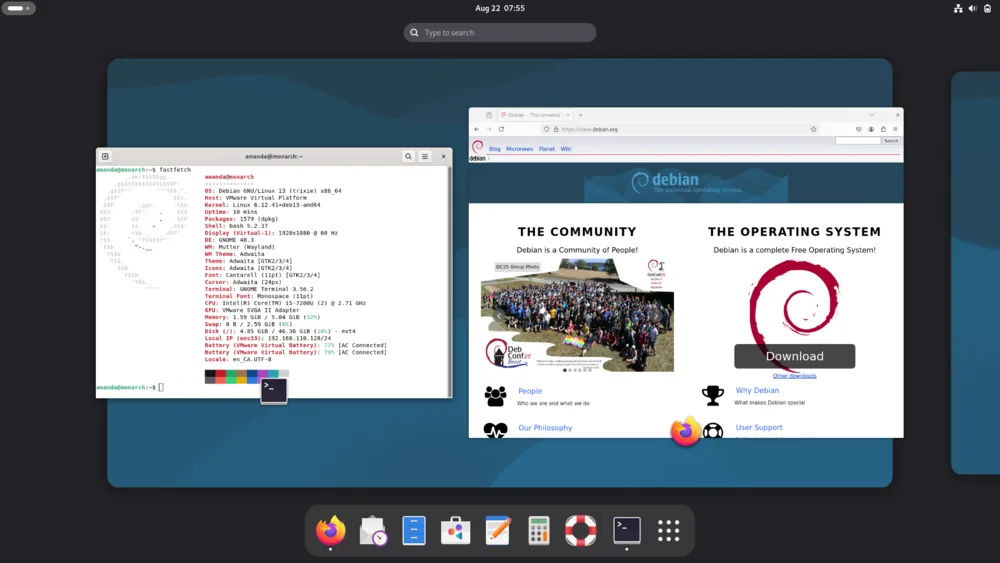
+Who it is not for, how it looks, and how long it lastsThis is Debian 13 «trixie» con GNOME. Photo by The Debian Project, licence GPL ↗
Debian stable changes little on purpose: what feels old on a desktop is exactly the virtue on a server you want running for three years straight. Almost everything that runs on a home server is documented for Debian or Ubuntu first.
Who it is not for
It is your only computer, you just bought it, and you use it to work on new things. Desktop programs will be two years behind and brand-new hardware may not boot.
You want real Arch, but with a graphical installer
EndeavourOS
9 most looked at
Arch with a graphical installer, and nothing else on top.
Ready out of the box—nothing is missing from the system: it installs and boots into the desktop you chose. What it does lack is what others have too much of — nobody decided anything for you.
Wants8 GB of RAM is comfortable, and it depends more on the desktop you pick than on the distribution.
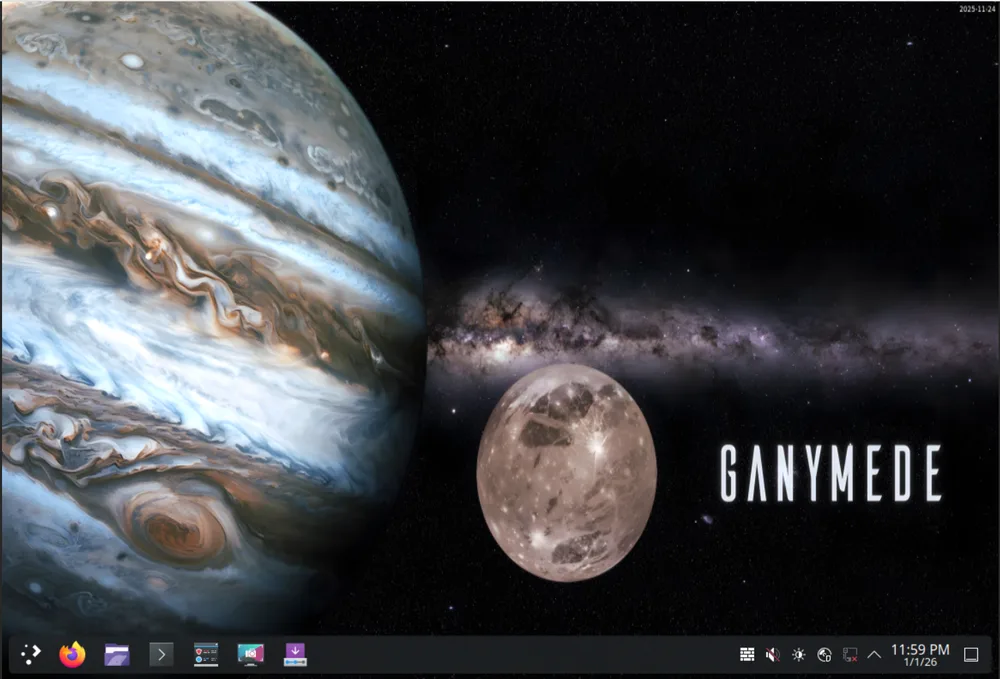
+Who it is not for, how it looks, and how long it lastsThis is EndeavourOS Ganymede con KDE Plasma. Photo by endeavouros-team, licence GPL ↗
It gives you the official repositories, the AUR and the ArchWiki exactly as they are, puts a graphical installer on top, and stops there: it does not dress the system up or add layers of its own, so what you learn here applies to any Arch. During installation it lets you choose from nearly every desktop there is, from the heaviest to the most minimal.
Who it is not for
You want somebody to have decided for you how it looks and what comes installed. That is CachyOS or Omarchy. Here the whole point is that nobody decided, and that means on day one you have to.
What is different when installing it
Its installer offers two paths: online, which is the one that lets you choose a desktop, and offline, which installs a fixed one. If you want to choose, you have to be connected to the internet while installing.
Desktop
Whichever you pick while installing: KDE, GNOME, Xfce, Cinnamon, i3 and more.
The one that decides nothing for you. For better and for worse.
You build it—everything is missing, on purpose: it installs nothing you did not ask for, and on first boot there is no desktop, no bar and no browser.
Wants8 GB of RAM and patience on day one.
+Who it is not for, how it looks, and how long it lastsThis is Arch armado a mano, en junio de 2024. Photo by Arch Linux developers, licence GPL ↗
It costs you time, and in exchange it installs nothing you did not ask for, and its documentation — the ArchWiki — is the best in all of Linux, good enough that people on other distributions use it. Its installer is guided now, so the reputation for being hard is older than the reality.
Who it is not for
You need the computer to simply work while you work. It updates continuously and every so often an update needs you to step in. It is rare, but it happens when it happens.
What is different when installing it
Its installer is guided and you have to call it: you type archinstall in the terminal that appears when the image boots, and a menu comes up. The reputation for installing Arch by hand is older than the reality.
Desktop
Whichever you pick.
How long it lasts
No releases: it updates forever.
Current version
Sin versiones: se actualiza para siempre
Warning
During 2026 the project itself reported waves of packages carrying malicious code in the AUR, the user-made repository. Nobody reviews the AUR: before installing from it, read what the file does. Arch's official repositories are not the problem.
You want it to run well on the good machine and on the eight-year-old one
MX Linux
3 most looked at
The one that runs well on whatever you put it on.
Ready out of the box—nothing is missing: it ships codecs and a drawer of its own tools for what other distributions send you to the terminal for.
Wants4 GB of RAM is comfortable. With 2 it still holds up.
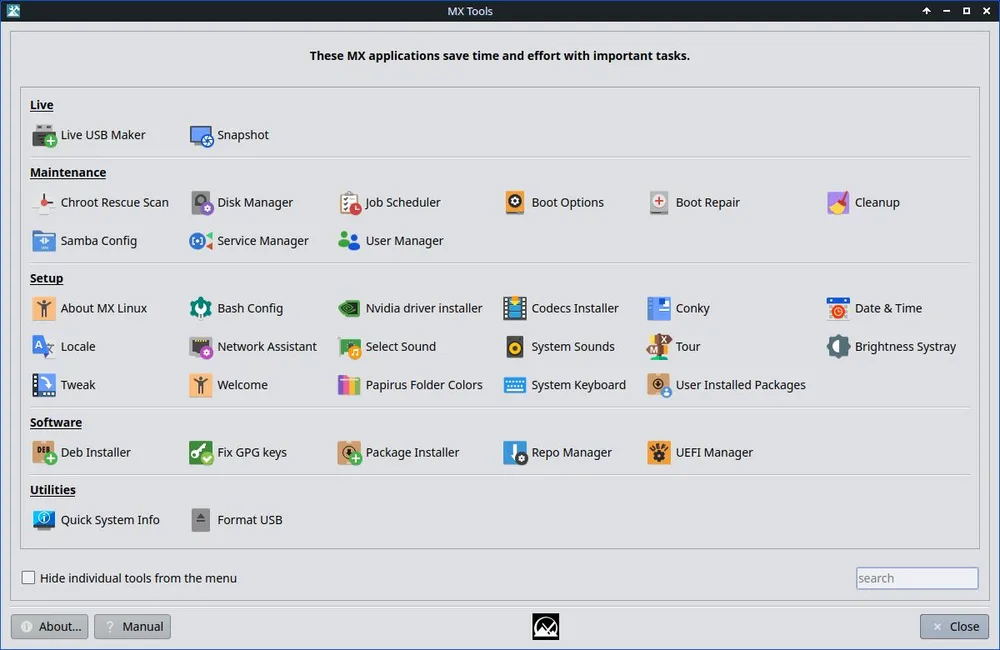
+Who it is not for, how it looks, and how long it lastsThis is MX Linux 23 y sus MX Tools. Photo by FullScale4Me, licence GPL ↗
It runs on Debian, so it is genuinely stable, but without Debian's software drought. Its house speciality is the MX Tools: two dozen windows for installing drivers, making backups or writing your whole installation onto a USB stick — things that on other distributions are a tutorial.
Who it is not for
You want the newest desktop software. It is Debian underneath: it changes little and late, which is exactly why it does not break.
Desktop
Xfce, KDE Plasma or Fluxbox, depending on the image.
How long it lasts
Follows the Debian stable calendar.
Current version
MX Linux 25.2
Warning
If your machine is genuinely old — 2 GB of RAM and a spinning disk — its sibling antiX goes lower still and is built for exactly that.
Your computer is fifteen years old and has 2 GB of RAM
antiX, y las demás ligeras
For the machine everybody has written off.
Ready out of the box—nothing is missing that you would need to install. The cost is not building them: it is getting used to a desktop with no ornament.
Wants1 or 2 GB of RAM. They work on machines fifteen years old.
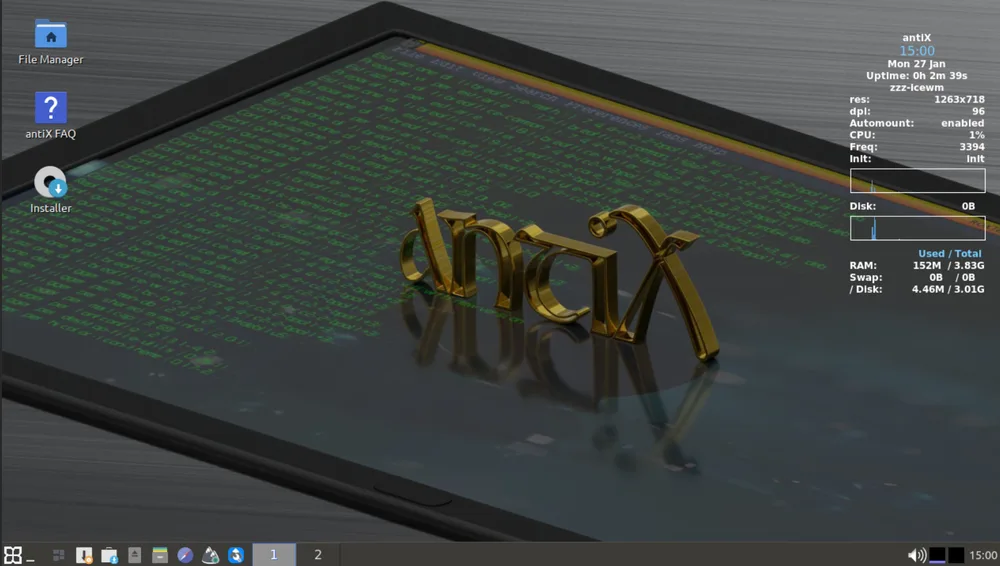
+Who it is not for, how it looks, and how long it lastsThis is antiX 23.1. Photo by AntiX Devs, licence GPL ↗
You have a 2010 computer with 2 GB of RAM and a spinning disk. The big distributions crawl there; these do not. Do not expect effects or transparency: expect it to be good for browsing, writing and watching video, which is what that machine is going to do.
Who it is not for
Your machine has 8 GB or more. You would be choosing an uncomfortable desktop for no reason at all: install Mint.
What is different when installing it
antiX offers several variants. The “full” one comes with the programs already in place, and it is the one you want if that is going to be your only computer.
Choosing well is worth nothing if the road costs you your data. These six do not depend on which one you pick: they are about the process, and they are the ones that charge dearly.
01Back up what you cannot lose onto ANOTHER disk
And open it from the copy before going on. A backup nobody has opened is not a backup, it is a folder.
02If you are going to keep Windows on the same machine, get your BitLocker key out today
This is the one that genuinely erases things. Windows 11 turns on disk encryption by itself as of version 24H2, on installs and on updates, and a lot of people do not know they have it on. Installing Linux alongside changes the boot chain; the security chip measures that chain, sees something different and does not release the key, so Windows asks you for a recovery key it never showed you. If you signed in with a Microsoft account, the key is saved in your account and takes two minutes to retrieve. If you signed in with a local account and never saved it, it may not exist anywhere — and at that point there is no data to recover.
03Try it live before installing anything
They all boot from the USB stick without writing to the disk. In those ten minutes you see the one thing you cannot find out by reading: whether it picks up your wifi, whether there is sound, whether the screen runs at its own resolution and whether the trackpad feels right.
04Check the image you downloaded against the checksum the project publishes
This is not textbook paranoia. In 2016 Linux Mint's site was hacked and they were handing out an image with a back door in it; anyone who checked the checksum did not swallow it. It takes a minute and you do it once.
05Check YOUR programs beforehand, not afterwards
If your work depends on a specific one — Adobe, an Office with macros, your school's or your job's system — that does not move systems with you. Find out whether it runs, whether there is an equivalent that works for you, or whether you are going to need Windows alongside. It is the number one reason someone goes back after three days, and it has nothing to do with Linux.
06If it will not boot, look at Secure Boot before blaming the distribution
And with the right nuance, because almost everything you will read about this is overblown: Microsoft's 2011 certificate expires on 27 June 2026, but what is ALREADY installed keeps booting the same. The problem is older machines that no longer get firmware updates, on the day their bootloader has to change. The big distributions boot with Secure Boot on; if yours does not, that is the first thing to look at, not the last.
+And how you install it, which is the same for all twelveThree mechanical steps. What you need sorted out beforehand is up above; this is only the procedure.
01Write the image to a USB stick of 8 GB or moreWith Ventoy if you plan to try several — you copy the files across and that is it, and the stick still works for other things — with Rufus if you are on Windows, or with balenaEtcher, which works the same on all three systems. Whatever that stick had inside is not coming back.
02Boot from itWhen you switch on there is a key for the boot menu: almost always F12, F2, Esc or Delete, and the logo screen tells you which for half a second. If the machine goes straight to Windows without even asking, it is not that the stick was written badly — which is what everyone assumes first — it is Windows fast startup, and you turn it off from Windows or get around it by holding Shift while you click Restart.
03In the installer, the only screen that matters is the disk one“Erase disk” takes everything that was there, without asking twice. “Install alongside” splits the space and leaves the other one where it is. The rest — language, keyboard, your name, the password — answers itself. If you hesitate on that screen, do not click anything: go back to the six points above, because what is left to sort out is there.
When it finishes, take the stick out BEFORE rebooting, or you go back into the installer and it looks as though nothing got installed.
And if you would rather not risk anything yet? The computer you already have will almost always do, and you can check without erasing anything on it. La que ya tienes.
None of this is about which computer to buy, and that is on purpose: that has its own section, with specific machines and their prices. And before buying anything, the one you already have will almost always do — and you can check without erasing anything.
They are two different decisions and they are almost never explained separately. The distribution is the part underneath: where the programs come from, how often they change, who reviews them. The desktop is the part on top: the bar, the menu, the shortcuts, how the windows look. The same CachyOS can look like Windows or look like nothing you have seen, and underneath nothing changed.
Hyprland is one of the ones on top, and it arrives empty on purpose: you install it, you boot, and it leaves you a screen with no bar, no menu and no wallpaper. Building the whole thing — bar, launcher, notifications, lock screen, shortcuts, all of it matching — takes days, and it is exactly what people show off on the internet when they post their desktop. That is why this category exists: somebody already built one and published it so you can copy it in one go. These are the ones the Hyprland project itself lists in its documentation.
And something disorienting comes out of this: “ready” and “build it yourself” are not two camps of distributions, they are two layers. Omarchy is Arch — the most build-it-yourself thing there is — and it arrives built. CachyOS boots ready out of the box, and on top of that you can set about assembling Hyprland from scratch, which takes several evenings. The same base gives you both: what decides how much you will be building is the pairing, not the distribution. Of the ones on this list, only two save you the top layer with no work at all: Omarchy, because it already is the system, and Noctalia, because you pick it in the CachyOS installer.
HyDE
The most polished and the most tightly stitched: themes change whole in one go — wallpaper, colours, terminal, launcher, lock screen — and everything ends up matching. It is what runs on the desktop in this house, on top of CachyOS.
Arch, CachyOS, EndeavourOS, Garuda. There is a separate version for NixOS.
It is one of the ones that overwrites most: it warns you in writing that it is going to replace your GTK and Qt theme, your login screen and your boot screen. It keeps a copy of what it replaces, but on top of an already-built desktop is where it has the worst time.
+The other six there areOne reaches more distributions than any other, one brings an on-screen translator and AI models, and two save you the assembly.
ML4W
The one that asks you to learn least: it comes with graphical applications for configuring it, a panel already in place and a welcome screen. It is the one that most resembles an ordinary desktop, with Hyprland underneath.
Arch and derivatives, Fedora and openSUSE Tumbleweed. It publishes an image for trying it without installing anything.
end-4
The showiest and the most inventive: a window overview with live thumbnails, colours pulled from the wallpaper the way Android does it, and a sidebar with an on-screen translator and connected AI models.
Arch and derivatives. It wants a recent version of Hyprland.
JaKooLit
The one that reaches furthest: instead of a loose configuration, it ships an installer per distribution. If yours is not Arch, this is where to start.
Arch, Fedora, Debian, Ubuntu, openSUSE and NixOS, each with its own script.
Dank Linux
The whole desktop in one piece — panel, notification centre, launcher, lock screen, colour pulled from the wallpaper — and the only one on the list that also works with niri, the other window tiler people are using.
Arch and derivatives, with its own installer.
Omarchy
The odd one out: it is not a configuration you put on top, it is a whole system with all of this already inside. Its entry is further up, among the distributions, because that is where it belongs.
It is the system: it wants the disk to itself.
Noctalia, in the CachyOS installer
The shortest cut of all: since its June 2026 image, CachyOS ships a ready-built Hyprland desktop option you pick while installing — with a sample video in the installer itself — so there is nothing to put on top afterwards.
CachyOS, and only from the installer.
+What is true of all of them, and none of them leads withThey overwrite what you had, they are tied to a Hyprland version, and they come with no support.
·They overwrite what you had. They replace your terminal configuration, your theme, your login screen and sometimes even your boot screen. On top of a desktop you have already set up — a KDE or a GNOME you have been arranging for years — they will fight with it. On a clean install is where they behave.
·They are tied to a Hyprland version. Several require a recent one and stop working with the previous one. It is a desktop that updates with the project, not a program that sits still.
·They come with no support. If something breaks, you are the one who fixes it, with whatever help there is in its documentation or its chat. In exchange there is nothing to pay and everything is out in the open.
+Wayland is no longer optional, and that has a consequenceOpen this if your graphics card is an NVIDIA more than ten years old: there is a way out that stopped existing.
GNOME 50 (the desktop in Ubuntu 26.04 and Fedora 44) removed the old X11 session entirely. It did not stop recommending it: it took it out.
The consequence is concrete and it hits real machines: older NVIDIA cards that need the 470 driver (the GeForce GTX 600 and 700) work badly on Wayland, and their way out was staying on X11. Under GNOME 50 that way out no longer exists. If you have one of those, your desktop is KDE Plasma or Xfce, and this is worth knowing before you install, not after.
On modern NVIDIA this is already fixed: since driver 555, from May 2024, the flickering and the stutter have a solution. Anything you read from before that date no longer applies.
And there is a NEW cut-off, from 2026, that almost nobody has written about yet and that moves the line a long way up: driver branch 590 dropped the GeForce GTX 900 series, the entire GTX 10 series — yes, including the 1080 Ti — and Volta. 580 is the last full branch that carries them; from there on they move to maintenance, with security patches and little else. It is not that they stop switching on: it is that they stop moving forward, and that any installer that gives you “the NVIDIA driver” without asking will give you the one that no longer supports them. If you have one of those, the fact that matters is not which distribution you pick, it is that the driver has to be from the 580 branch.
What still limps on Wayland: old window automation (xdotool, wmctrl), forwarding a window over ssh -X, some colour pickers, and screen sharing, which is still uneven depending on the application.
Three out of three
The machine in the closet
It goes separately because comparing Proxmox with Linux Mint would be comparing different things: one is the desktop on your laptop, the other is what makes an old computer useful to the whole house. Start with the system, which is almost always the same one.
The system is almost always the same, and it is Debian, which has its entry above: it changes little on purpose, and what feels old on a desktop is the virtue on a machine you want running for three years. What goes ON TOP is what follows here.
+And on top, what actually does the workThe five systems you put on that machine, and the two mistakes that cost you a full reinstall.
Debian + Docker
The simplest path, and the one that looks most like what is documented on the internet. You install Debian, you install Docker, and each service is a container.
When: It is your first server and you want to understand what is happening.
Proxmox VE
A hypervisor on top of Debian: it turns one machine into several, each with its own backup and its own undo button. Full virtual machines and lightweight containers.
When: You have already broken a server and you want to be able to go back without reinstalling.
TrueNAS
A whole system dedicated to looking after disks, built on ZFS, which notices on its own when a file starts to rot and repairs it. Virtual machines are the secondary part.
When: What matters most to you is that the files do not rot over the years.
OpenMediaVault
Network storage managed from the browser, on Debian, and without asking for as much memory as TrueNAS.
When: You want a NAS on a Raspberry Pi or on a modest mini PC.
Unraid
The only paid one on the list. Its real advantage is that it builds an array out of disks of different sizes, which is what you have when you collected them one at a time.
When: Your disks are mismatched capacities and you do not want to buy them matching.
The two mistakes that cost you a full reinstall
·Virtualising TrueNAS on top of Proxmox and handing it individual disks instead of the whole controller. ZFS needs to talk to the disk directly: putting it on top of another system that already manages those disks amplifies the writes and eats the SSDs.
·Choosing TrueNAS or Unraid when what you actually wanted was to virtualise (that is Proxmox), or choosing Proxmox when what you wanted was somewhere to keep files, which is TrueNAS or OpenMediaVault.
+Are immutable distros ready for normal people yet?Open this if you read that there are distros “that do not break”. They are three different groups, and mixing them up is what makes people recommend them badly.
In 2026 the answer stopped being one answer. There are three groups, and mixing them up is what makes people recommend them badly.
Ready for anyone
Bazzite, Bluefin and Aurora
Bazzite already appeared above, in the gaming entry. Bluefin and Aurora are that same idea for working instead of playing — the first with GNOME, the second with KDE — and all three come from Fedora with the codecs and the NVIDIA drivers installed out of the box. For the computer of someone who just wants it to work, today they are among the best options there are.
Ready if you compile nothing
Fedora Silverblue and Kinoite, openSUSE Aeon
Solid and clean, as long as you live on Flatpak and containers. If your work involves installing odd things into the system, you are going to fight.
Still for enthusiasts
NixOS and openSUSE Kalpa
NixOS requires learning a language of its own to configure your computer; that is not a defect, it is its nature. Kalpa is still published as an early release.
Who they are NOT for: if you install software with apt or dnf the old way, if you depend on unusual proprietary drivers or on older AppImages, immutable distros will get in your way more than they help.
+Is there a distro for recording music?Open this if you record music and somebody told you that you have to switch distribution for it. The answer changed.
The honest answer in 2026 is no, and that switching distribution for audio no longer makes sense. What decides is PipeWire, which is the sound system all of them ship today, and how it is configured.
Focusrite Scarlett interfaces need no driver installed: support has been inside the Linux kernel for years, and there is an application, alsa-scarlett-gui, that gives you the mixer that on Windows would be Focusrite Control. REAPER and Ardour see the interface through PipeWire directly.
The famous “low latency” kernel stopped being a separate thing: its settings were merged into the normal kernel. What is left to tune are boot parameters, not a different distribution.
Ubuntu Studio is still worth it, but for what it comes with preinstalled and for its configuration tool, not because it sounds better. And for a computer that is already tuned and measuring well: changing its distribution over this would be work with no gain.